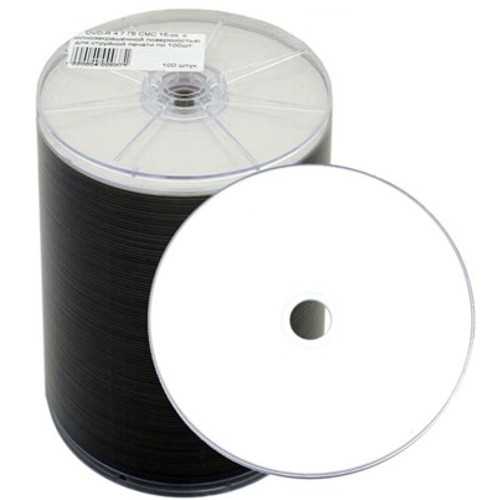
If you need to produce high-quality, detailed designs on your discs, consider investing in a specialized device for label application. These machines provide the necessary precision for printing directly on CD and DVD surfaces, ensuring clear text and vibrant images without the risk of smudging or damage to the disc itself.
Key Features to Look for in a Disc Labeling Device
When selecting a device for printing on your discs, focus on these features:
- Direct-to-Disc Printing: Devices that print directly on the surface of the media avoid the need for adhesive labels, which can peel off over time or cause read/write errors. Look for printers that support this functionality to get professional results.
- Print Resolution: A higher resolution (at least 4800 x 1200 dpi) will ensure sharp text and images on your discs, ideal for creating detailed designs.
- Compatibility: Make sure the device supports various disc types (e.g., CD-R, DVD-R) and is compatible with your operating system for seamless operation.
- Ease of Use: Choose a model with user-friendly software for designing labels. Some devices come with pre-installed templates to help speed up the process.
How to Print Clear and Durable Disc Labels
Follow these steps for optimal results:
- Prepare Your Design: Use a design program (or included software) to create your label. Ensure the dimensions match the size of the disc surface, and use vibrant colors that will show up well on the shiny surface.
- Choose High-Quality Media: Use media that is designed for direct printing. Standard discs may not provide the best results as they are not optimized for ink absorption.
- Align and Load the Disc: Carefully load the disc into the device’s tray, making sure it is aligned properly. Misalignment can cause printing errors.
- Test Print: Always perform a test print on a blank disc to check alignment, color accuracy, and clarity.
- Allow Drying Time: After printing, let the disc dry completely before handling or using it to avoid smudging the design.
DVD Printable Printer Buying Guide
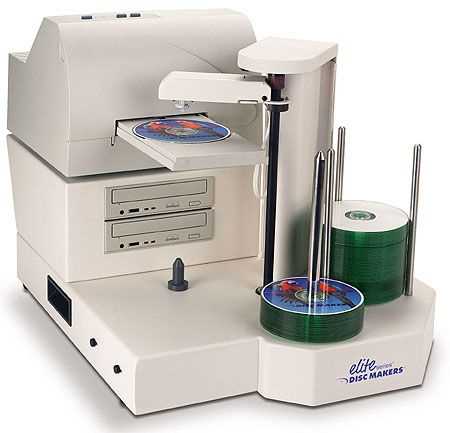
Look for models that support direct printing onto discs, eliminating the need for adhesive labels. This feature ensures your design remains intact, free from peeling or misalignment issues. Check product specs to confirm the machine can print onto the specific type of disc you plan to use, such as CD-R or DVD-R.
Printing resolution is another key factor. A resolution of at least 4800 x 1200 dpi ensures sharp, vibrant prints. If you intend to create high-definition images, text, or logos, this will provide the clarity you need without pixelation.
Compatibility with different software is also important. Choose a device that offers versatile software for designing labels, either included or downloadable. Many models also work with third-party programs like Adobe Illustrator or Photoshop, giving you more creative freedom in designing your disc labels.
Ease of use is a major factor in your purchase decision. Look for a machine with a simple interface and automated functions like disc alignment and calibration. A user-friendly display or control panel will save time and reduce the chance of errors during the printing process.
Consider the media tray capacity. Some devices can handle multiple discs at once, allowing you to print batches efficiently. If you frequently need to print large quantities, a larger tray capacity will save you from the hassle of reloading discs mid-process.
Lastly, take durability into account. Machines with durable print heads and long-lasting components will save you money in the long run by avoiding frequent maintenance or part replacements. Research customer reviews to get a sense of the reliability and longevity of the device you’re considering.