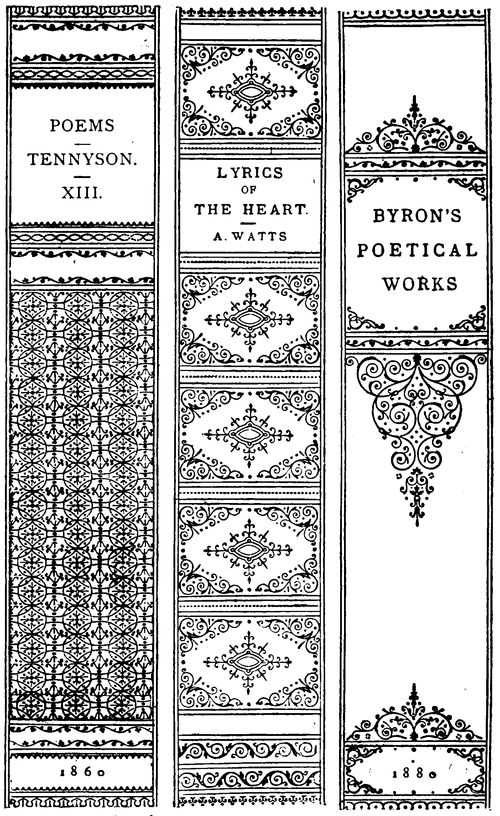
To organize your shelves efficiently, download pre-designed labels and adjust them according to your collection. These templates help give your collection a clean, uniform look while ensuring easy identification. The customization options allow you to personalize each label with titles, authors, or any other details important to you.
How to Print and Adjust Your Labels
First, select a design template that fits your storage needs. Open the file on your computer and adjust the dimensions to match the width of your containers or folders. Ensure that the text is legible by adjusting the font size and choosing colors that contrast well with the background. After making any necessary adjustments, print a test sheet on regular paper to check the alignment.
Steps for Printing:
- Choose the correct label format (size and design).
- Customize the template with your content (e.g., titles, colors).
- Print a test page to check for alignment and readability.
- Print on high-quality paper or adhesive sheets for durability.
Where to Find Free Templates for Custom Labels
Many websites offer a wide variety of downloadable templates for your labeling needs. Some platforms allow you to search for specific themes, such as vintage designs or modern minimalist styles. Websites like Canva, Adobe Spark, and other free design platforms offer easy-to-use tools to modify and print these templates.
Recommended Platforms:
- Canva – Offers customizable templates with an intuitive interface.
- Adobe Spark – Provides high-quality, printable designs with advanced features.
- Microsoft Office Templates – Free downloadable options for simple label creation.
Once you’ve downloaded your preferred design, you can also adjust colors, fonts, and images before printing. This allows you to create unique and visually appealing labels for your collection, ensuring both functionality and style in your home or office space.
How to Organize Your Shelves with Custom Labels
Download templates that fit your needs and start customizing them for your collection. Use editable files where you can adjust the text to suit each item. Make sure to use a consistent design to keep everything looking tidy. Simple and clean styles work best for easy identification.
After selecting a layout, print a test sheet to verify the alignment and readability. Adjust the settings to ensure the labels are sized correctly for your containers. Always choose high-quality paper or adhesive labels for durability, especially if you’re labeling items that will be frequently handled.
To add a personal touch, incorporate color schemes that match the theme of your collection. You can also use different fonts to highlight the titles or categories, making them easier to spot at a glance. Using contrasting colors for headings and subcategories will improve visibility and make the storage area more organized.
If you plan to use these labels for a large number of items, batch printing is an efficient way to save time. Many software tools allow you to create multiple labels at once, which you can then cut and apply as needed. This way, you can label an entire shelf or room in one go.
For extra flexibility, consider creating reusable labels. Using a dry-erase or laminated design allows you to modify the content as your collection grows or changes. This method works well for environments where the contents are regularly updated or rotated.