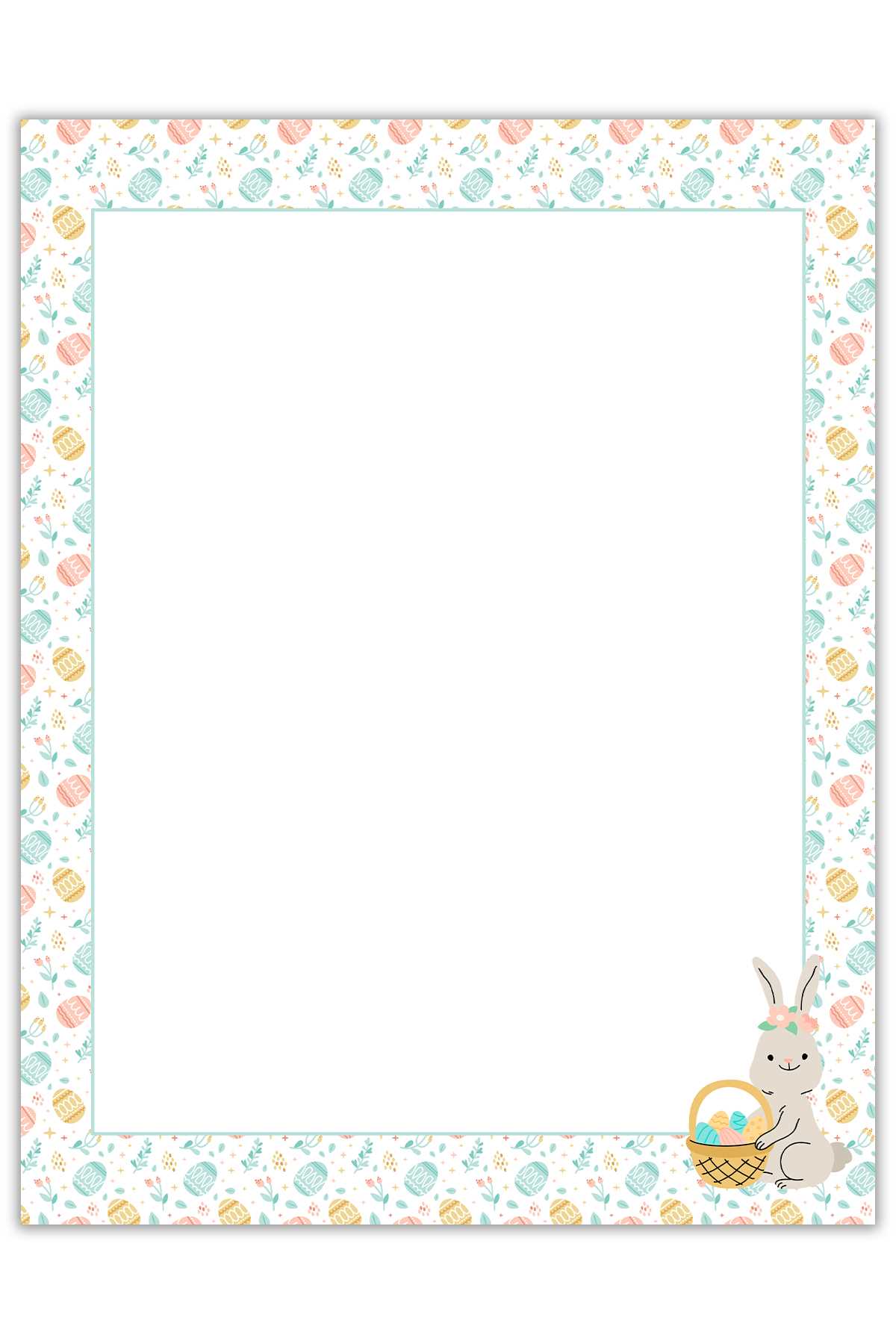
Download a festive, ready-to-print note from a whimsical character to make the holiday experience even more magical. These templates are designed to create a personalized and memorable moment for children. Simply choose your preferred design and prepare it for delivery.
After downloading the template, print it using standard letter-sized paper. Opt for high-quality settings to ensure that the details are sharp and the text is easy to read. If you plan to add any extra elements like stickers or drawings, make sure the paper is thick enough to handle additional materials.
Consider personalizing the message with the child’s name or a specific detail about their holiday activities. This small touch adds a sense of wonder and makes the entire experience feel more special. Once printed, you can fold and place the message in an envelope or leave it in a creative spot for the child to find.
Creating a Magical Holiday Surprise for Kids
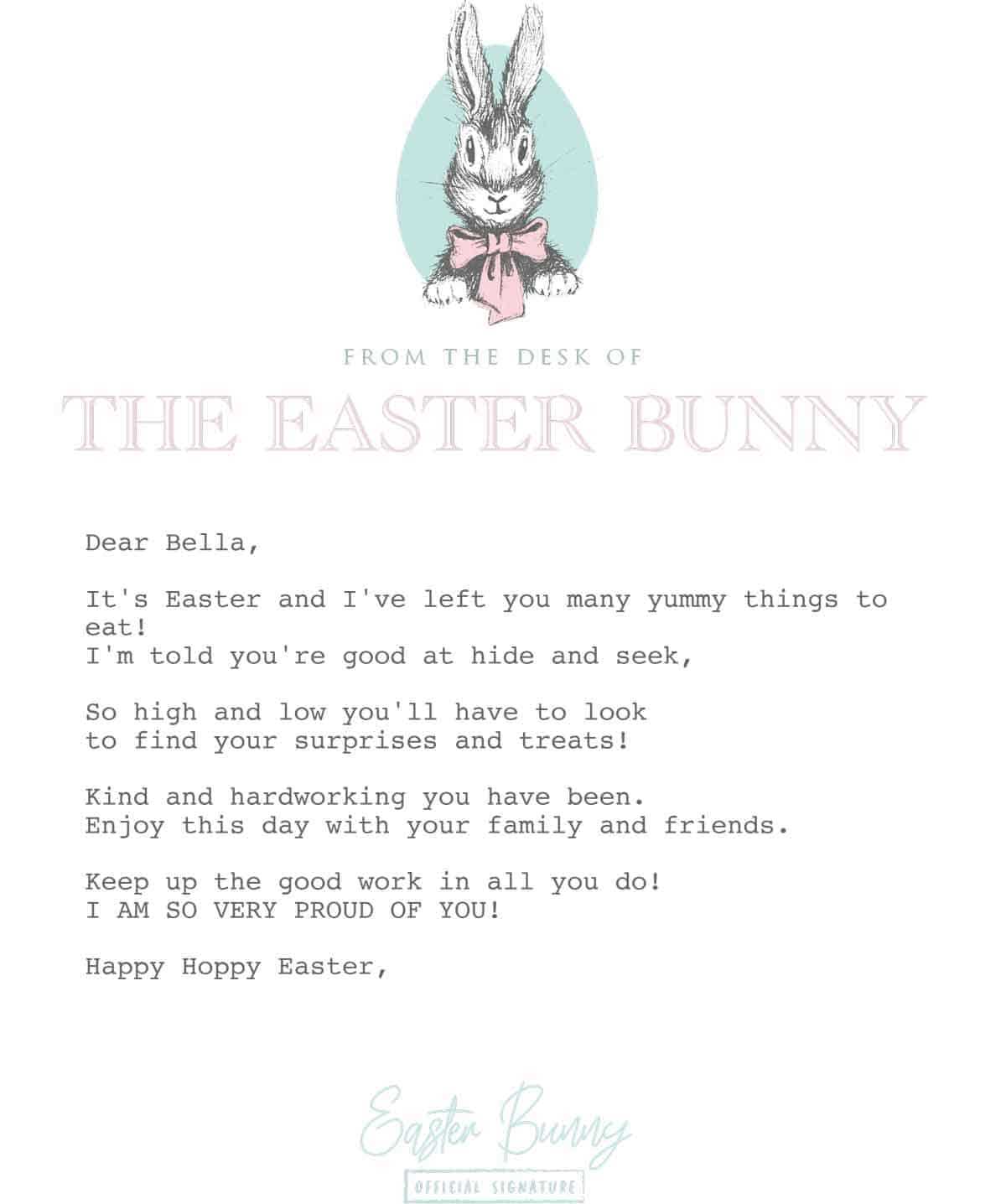
To create a fun and memorable experience, start by selecting a festive design that fits the personality and theme of the holiday. Many designs are available online for free or for a small fee. Choose one that resonates with the child’s interests or the decorations you’re using.
Once you’ve found the right design, download the file to your device and open it in a viewer that supports the file type. Whether you’re working with a PDF or an image file, make sure the resolution is suitable for printing. A resolution of 300 DPI ensures a crisp and clear printout.
Before printing, adjust your printer settings. Use high-quality paper for the best results–thicker, glossy paper tends to provide a professional finish. Set the printer to the highest quality setting to ensure the colors and text appear vibrant and easy to read.
If you want to add a personal touch, consider editing the template to include the child’s name or references to things they’ve done recently. For example, mention their excitement about the upcoming celebration or a recent activity they enjoyed. This adds a special element to the note.
- Use premium paper for durability.
- Personalize the note with a child’s name.
- Print using the highest quality settings on your printer.
Once printed, you can fold the note and place it in an envelope for a traditional touch. Alternatively, leave it in a special spot like under a pillow or in a basket for the child to find. This element of surprise adds an extra layer of excitement to the celebration.
Consider adding decorative elements to further enhance the experience, like colorful stickers or drawings around the edges of the note. You can also laminate it if you want the child to keep it as a keepsake. A carefully presented message can make the holiday even more magical and memorable.
How to Download and Print the Easter Bunny Letter
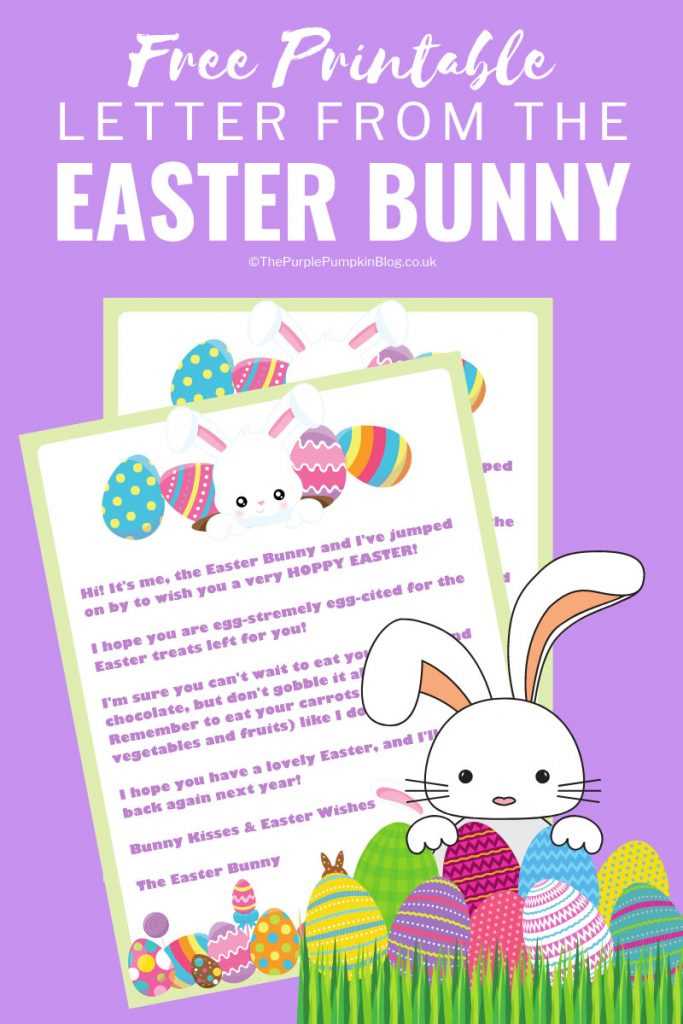
To begin, find a reliable website offering the festive design you want. Many sites provide free downloadable files, which come in various formats like PDF or PNG. Look for one that fits your theme and style preferences.
Once you’ve chosen a design, click the download link and save the file to your device. Ensure that you are downloading a high-resolution version for the best quality print. Check the file size and dimensions to ensure it fits standard printing paper.
Next, open the file on your device and review it to make sure it appears sharp and clear. If you’re using a PDF, confirm that the layout is formatted for the size of the paper you plan to use. If needed, adjust the print area or margins.
Now, prepare your printer. Set it to the highest quality print settings. Select the appropriate paper type based on your printer’s options. For a more professional look, use glossy or card stock paper to create a sturdy and high-quality document.
After adjusting the settings, print the design. If you’re printing multiple copies, select the number of copies required. Double-check the printer’s paper tray to ensure it is stocked with enough paper, and make sure the printer is connected properly.
- Download a high-resolution file for best print quality.
- Set the printer to the highest quality setting.
- Use premium paper like glossy or card stock for durability.
Once printed, carefully cut out the design if needed, or simply fold it for a neat presentation. If you’d like to preserve it longer, consider laminating the print or using protective covers.
Now that it’s printed and ready, you can personalize it further. Add the child’s name or a custom message, making the holiday even more special. The finished product will be ready for you to hand out or place in a basket for a fun surprise!