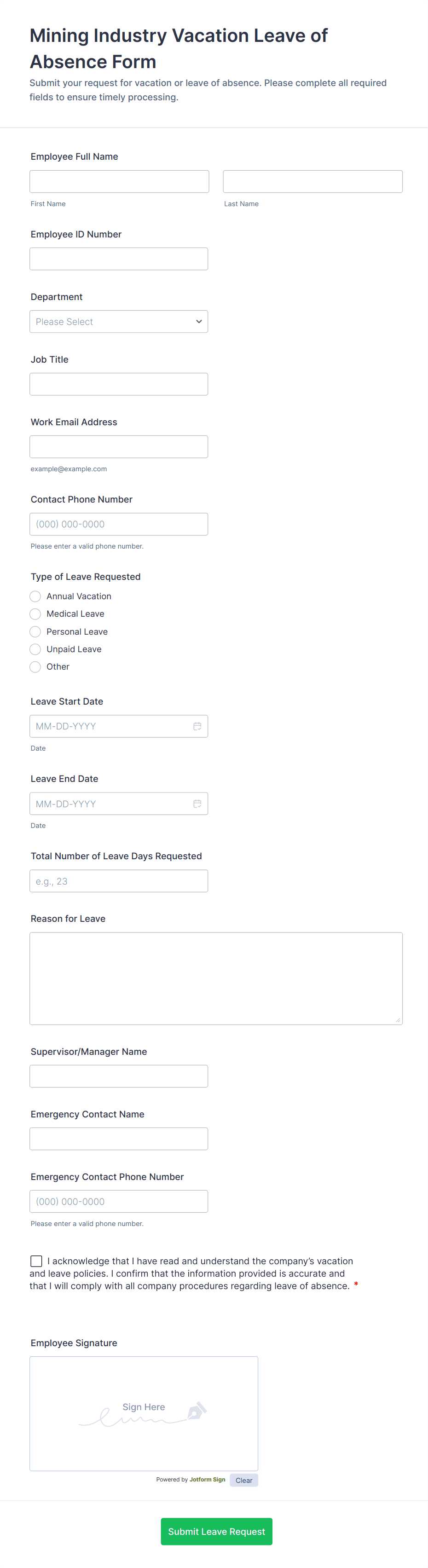
Start by choosing a clear layout for the document. Use a word processor or design software to create an easily readable structure with fields for the individual’s name, dates of absence, and type of leave. A simple, clean design will help avoid confusion and streamline the process for both employees and managers.
Next, make sure to include key details such as the reason for the absence, the requested time frame, and space for manager approval. Adding a section for notes or additional comments can also be helpful, allowing flexibility for any specific instructions or considerations.
For the best results, choose a font that is easy to read, such as Arial or Calibri, and ensure the text size is large enough to be legible. The form should be simple, but structured enough to gather all the necessary information without being too cluttered.
If you are preparing multiple copies for a team, consider creating a template that can be easily duplicated or filled out electronically. This will save time and ensure consistency across all submissions.
Creating a Leave Approval Document
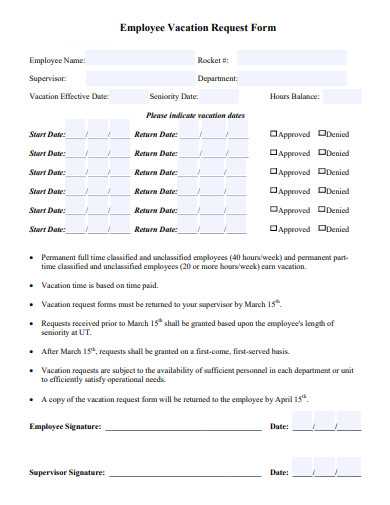
To ensure consistency, structure the document with clear sections that request all necessary details: employee name, type of absence, dates, and reason for time away. Make sure the layout is simple and easy to fill in, using well-spaced fields for each item. A professional design can make the approval process smoother and reduce errors during submissions.
Include a space for both the employee and the manager’s signatures, which confirms agreement on the absence. If possible, add a section for backup information, such as a colleague covering duties, to ensure a seamless workflow during the person’s time away. This will help to streamline the process and provide clarity for all parties involved.
Steps to Create a Custom Leave Approval Document
Start by choosing a design tool such as Microsoft Word, Google Docs, or Canva. These tools provide templates that can be easily customized. Begin with a simple layout, focusing on clarity and legibility. Create designated sections for employee details, dates, and reason for absence.
Next, include key fields such as employee name, department, and manager’s name. Ensure there is a section to indicate the type of absence, whether it’s sick leave, vacation, or personal time. This helps streamline approval and record-keeping processes.
Set up a date section with fields for both the start and end dates. Make sure to leave enough space for the employee to indicate the duration of their absence. This ensures that the document will be easily processed and helps the supervisor plan accordingly.
For better organization, add a space for comments or special instructions. This is useful for employees who may have specific circumstances or requests regarding their absence, such as urgent situations or the need for remote work.
Once the layout is complete, check for consistency. Ensure all sections are clearly labeled and easy to fill out. Make sure the font is readable and that the document is not cluttered. Simplicity is key to ensure the approval process is efficient.
- Test the document by filling it out yourself or asking a colleague to ensure all necessary fields are included and easy to understand.
- Save the template in an accessible format, such as PDF, to ensure it can be printed or shared electronically without issues.