Start by selecting the right design software or tool for creating your templates. Use simple programs like Word, Canva, or Adobe Illustrator, depending on your skill level. Choose a layout that fits the size of the items you’re covering, with enough space for unique decorative elements like patterns, messages, or even personalized designs.
After setting up the template, consider adding creative touches such as themed colors, fun illustrations, or even custom text. Make sure the design reflects the occasion, whether it’s a birthday, holiday, or special event. Leave enough room for neat folds and tape without cutting off any important details.
When your design is ready, print it on high-quality paper or cardstock. Use a color printer for vibrant designs and a standard printer for simpler patterns. Cut and assemble the template carefully, following the guidelines to ensure a neat finish. A well-chosen design will elevate any present, making it as memorable on the outside as it is on the inside.
How to Design and Customize Your Own Gift Wrapping Templates

Begin by selecting a template size that fits your items. Choose a format based on the dimensions of what you want to cover. A common size is 20×30 inches for medium-sized products, but for larger items, you may want to scale up. Ensure your design fits within the template area, leaving enough space for folds and adhesive without cutting into the design.
Once you’ve chosen the right size, add elements that match the occasion. Use simple geometric patterns or intricate illustrations depending on your style. If you want to personalize it further, consider adding custom text or a message such as “Happy Birthday” or “Congratulations.” Keep in mind that the design should complement the shape and color of the item you’re wrapping, not overwhelm it.
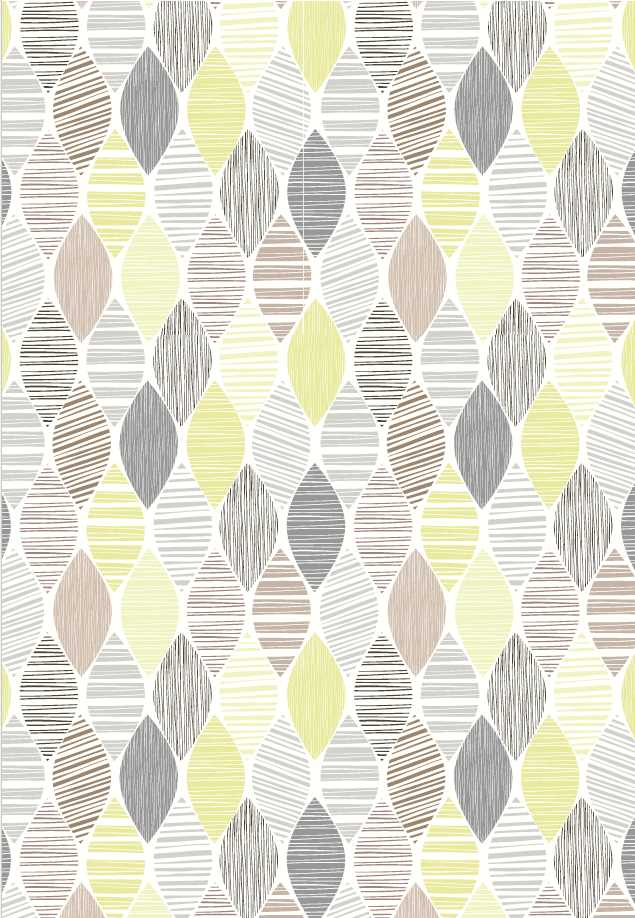
After laying out the design, check for any necessary margins around the edges. This will ensure the wrapping paper prints correctly without losing important details during the cutting and folding process. If you’re using a software like Adobe Illustrator or Canva, take advantage of the “print bleed” feature to avoid white edges after trimming.
Once satisfied with your design, save it in a high-resolution file format like PDF or PNG for the best print quality. Test print on regular paper to confirm colors and layout before using specialty paper like cardstock. This final step ensures your design is ready for the perfect presentation, whether for a birthday, holiday, or any special event.