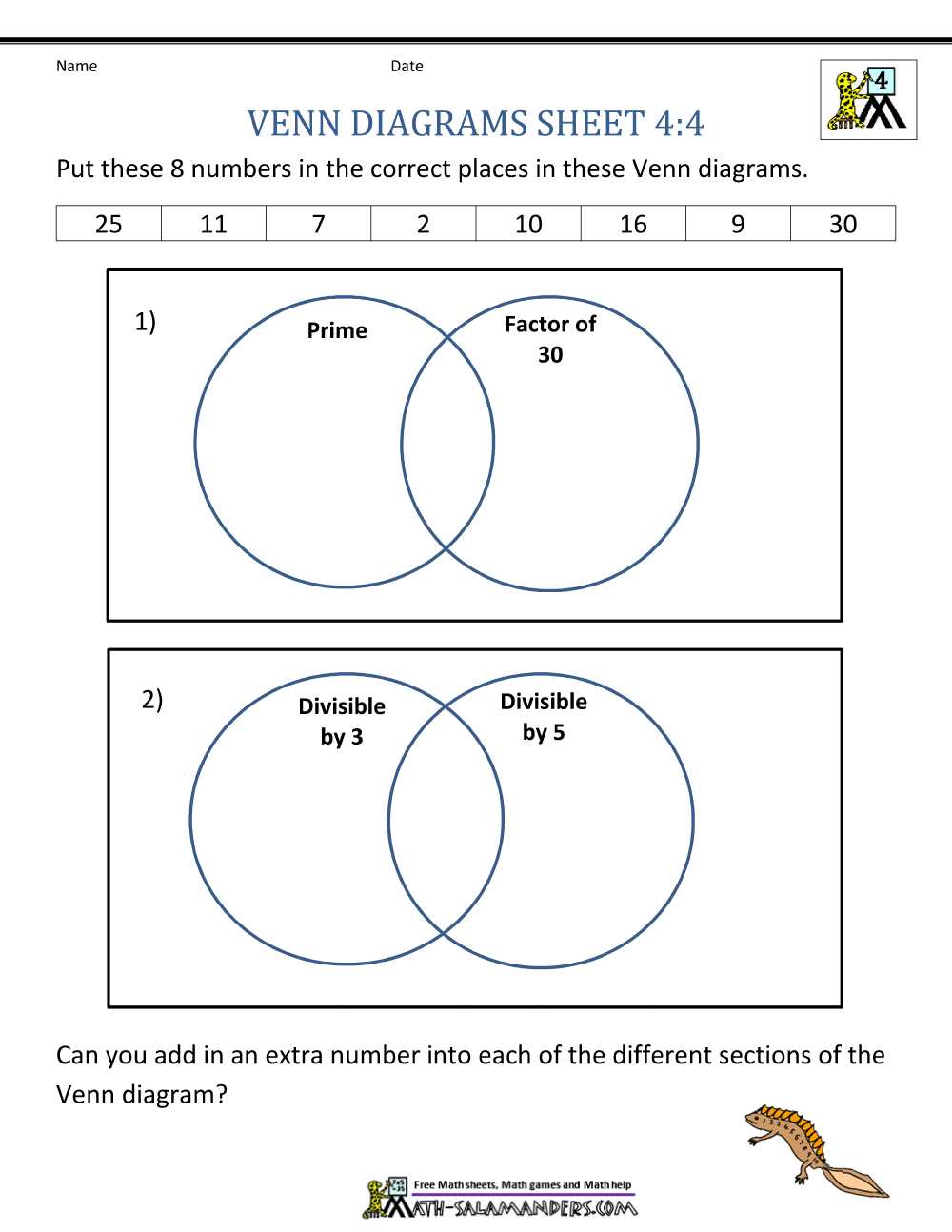
To effectively display relationships and overlapping characteristics between different sets, consider using a tool that simplifies understanding the similarities and differences between groups. You can easily achieve this by organizing the data into circular sections that allow for intuitive comparison. When creating these visuals, accuracy in placement of elements is crucial to ensure that the visual message is clear.
Start by defining the categories you want to compare. Each category will be represented by a distinct shape, typically a circle. Then, adjust their positioning to reflect the degree of overlap between the sets. The more they share in common, the larger the intersection between the shapes should be. Avoid overcrowding, and focus on maintaining balance for readability.
Ensure that each section is properly labeled with concise descriptions to guide the viewer through the information. Avoid lengthy explanations; instead, use brief, meaningful terms to capture the essence of each category. This method helps to make the graphic more accessible and easier to interpret quickly.
Consider color-coding different sections to enhance visual appeal and facilitate understanding. This visual cue can also help users distinguish between the individual sets and their relationships without needing to read the labels constantly. Additionally, experimenting with transparency can allow you to highlight overlaps while maintaining clarity in individual elements.
How to Create a Printable Overlap Chart
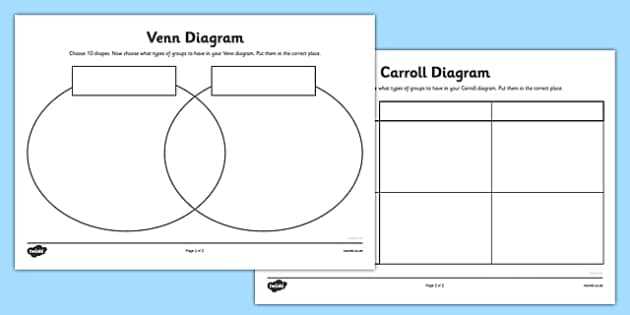
If you need a clear representation of shared and unique elements, start by choosing a reliable template for your overlapping sets. Search for designs that allow for easy customization, as flexibility will enable better visualization of relationships. Many available layouts can be adapted to suit different needs, from simple two-circle representations to more complex multi-set charts.
Ensure the dimensions are suitable for printing, taking into account your paper size. Most designs are optimized for standard 8.5 x 11-inch paper, but you can adjust the scale depending on how much space is needed for the information inside each section.
When customizing, focus on the clarity of labels and groupings. Place each distinct group in its own section, ensuring the overlap is obvious. Avoid crowding the sections too much; it’s best to leave some space for clarity. If necessary, color-code the areas to make it easier for readers to distinguish between different intersections.
Consider including a legend or key that explains what each group or section represents. This can be helpful if the chart is shared with others who are not familiar with the content. A brief description under each circle or area can also assist in making the chart more understandable.
Once the chart is customized, perform a test print to check for any scaling issues. Adjust the size if necessary so that the printout fits perfectly on the paper. Double-check the text size and spacing, ensuring that everything is legible after printing.
If you are distributing the chart, provide it in multiple formats. Many templates allow for exporting as PDFs, which ensures the layout remains intact. This also makes it easier for others to print the chart at their convenience.
For best results, keep the layout clean and straightforward. While it’s tempting to add excessive decoration, the key to a useful chart is simplicity and readability. Stick to functional design elements that enhance comprehension without overwhelming the viewer.
How to Create a Venn-Inspired Graphic Using Microsoft Word
To make a circular overlap chart in Microsoft Word, begin by opening a blank document. Navigate to the “Insert” tab and click on “Shapes”. From the shapes menu, select the circle and draw three overlapping circles on the page. Hold down the Shift key while dragging to ensure the circles are evenly shaped. You can adjust the size and positioning by selecting each circle and moving them into place. Use the “Format” tab to apply transparent fills and customize the borders, ensuring the circles overlap properly to create distinct sections.
Next, label the areas of the circles. Click inside each circle to add text, specifying the unique and shared attributes of the sets represented. To improve readability, modify the font style, size, and color from the “Home” tab. For more precise control over the layout, right-click each shape and choose “Format Shape” to adjust the transparency, shadow, and other effects. Once complete, you can save or print the file directly from Word, ensuring your visual representation is ready for use in presentations or handouts.