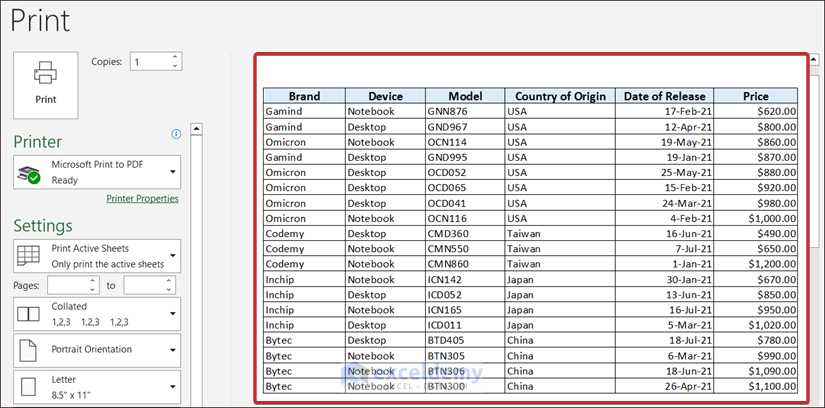
Step-by-Step Guide
To modify the print settings and size of the document in a spreadsheet program, follow these steps:
- Open the document you want to adjust.
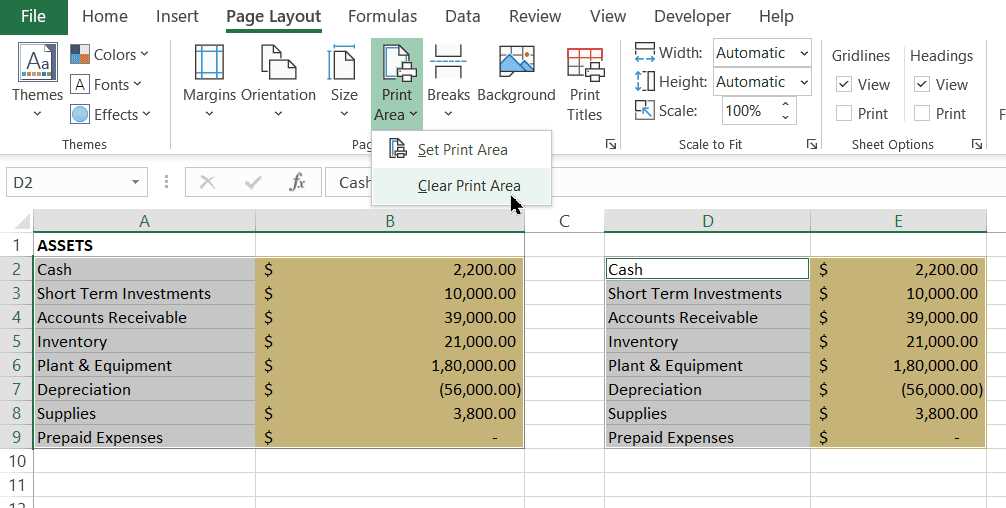
- Go to the “Page Layout” section in the toolbar.
- Select “Print Area” and then choose the range of cells you wish to include in the printed output.
- If necessary, use the “Margins” button to adjust the page’s margins. You can select predefined options or create custom margins.
- Click on “Scale to Fit” if you’d like to resize the content to fit a specific number of pages.
Customizing Margins and Scaling
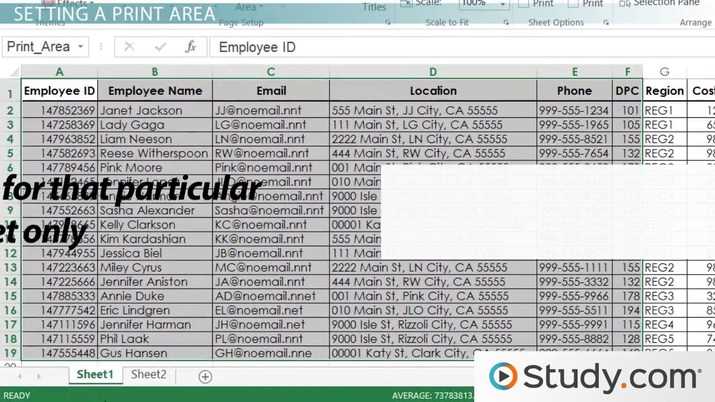
Once you’ve set the range of cells for printing, fine-tune the output by adjusting the margins and scaling options:
- Margins: Choose between normal, wide, or narrow, or set a custom margin to adjust the spacing between the content and the edges of the page.
- Scaling: Use the “Fit to” option to resize the document to a particular number of pages. This is particularly useful for larger documents.
- Orientation: You can switch between portrait and landscape mode based on how you want the data arranged on the paper.
Preview Before Printing
It’s important to preview your adjustments before proceeding with printing. Use the “Print Preview” feature to check how the content will appear. This allows you to catch any layout issues before committing to the print job.
Final Adjustments
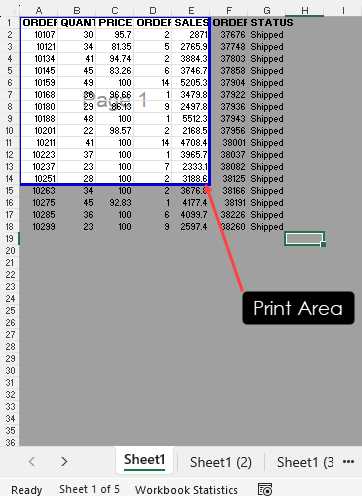
If you notice any misalignment or content getting cut off, go back and tweak the scaling settings, margins, or print range. You can also check the paper size and ensure it corresponds to the type of printer you are using.
Adjusting the Print Setup in Your Spreadsheet
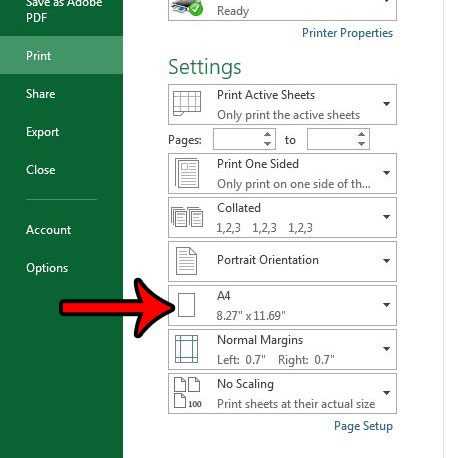
To reframe the section of your document intended for printing, select the “Page Layout” tab and access the “Set Print Area” button. Click on it after highlighting the cells you want to include, which ensures only the selected portion gets printed. This feature works by isolating your desired range and excluding any irrelevant data from the output.
If the region you selected exceeds the page limits, it’s possible to redefine what gets captured in the printout. Resize the selected block manually by dragging the borders of the selected cells. Alternatively, use the “Margins” feature under the “Page Layout” menu to fit everything within the printable width of your sheet.
For precise control, you can also adjust the scaling options. By selecting “Fit to” under the “Scaling” settings, the sheet can be resized automatically to match your printer’s paper size. This option is helpful when dealing with large data sets or when the layout appears too crowded on a single sheet.
In cases where you need a more custom solution, the “Print Titles” option allows you to lock specific rows or columns, so they repeat on each page. This way, critical headers or categories remain visible throughout the printout, ensuring easy readability and a professional look in your reports.