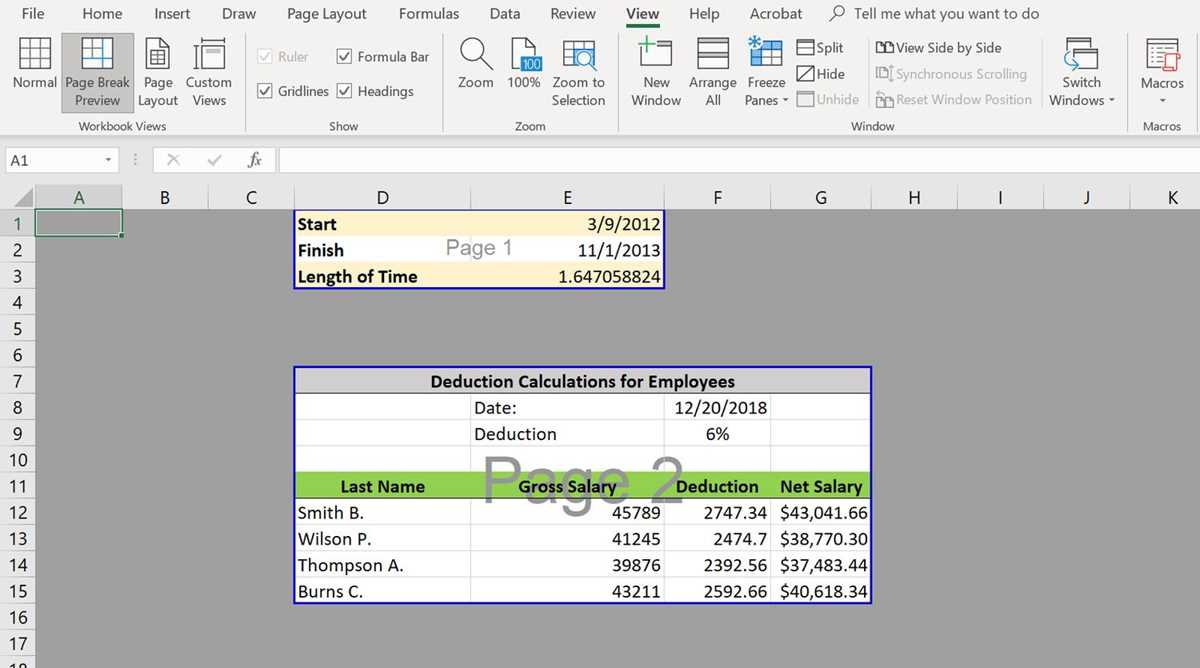
Define the Print Boundaries
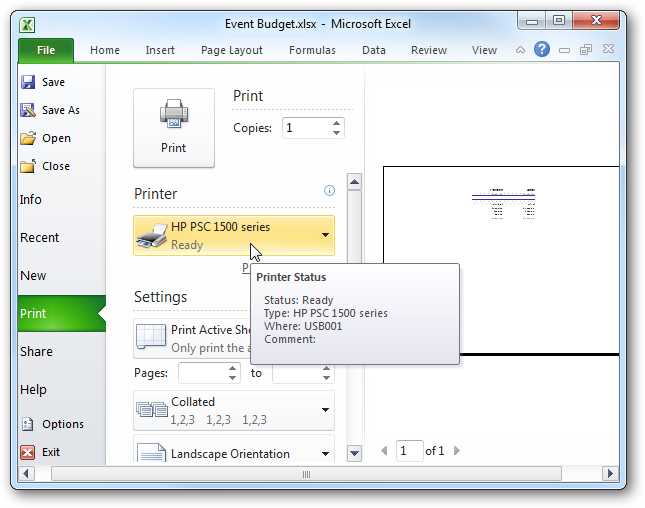
Open your file and navigate to the Page Layout tab. Here, you will find the option to adjust the print settings. Click on the Print Area section to specify which content should be included during printing. This ensures that you only print the relevant data and exclude unnecessary sections of the sheet.
Customizing the Printed Content
Once you’ve selected the desired content, fine-tune the output by going into Print Preview mode. In this view, you can examine how your selections will appear on paper. You can further adjust the margins, scale, and orientation from this section to ensure that everything fits neatly on the printed pages.
Adjusting Rows and Columns for Printing
If your data extends across multiple rows or columns, consider using the Fit to Page option. This will automatically adjust the spreadsheet’s size to fit on a single page or across multiple pages, depending on the amount of data. Alternatively, manually resize rows or columns by dragging their borders to optimize the content’s appearance on the printed page.
Printing Only Selected Sections
Sometimes, you may only need specific portions of the document. Highlight the section of your sheet you wish to print, then click on the Set Print Area option under the Page Layout tab. This feature allows you to designate a custom range of data to be included in the printout while leaving out everything else.
Remove Unnecessary Sections
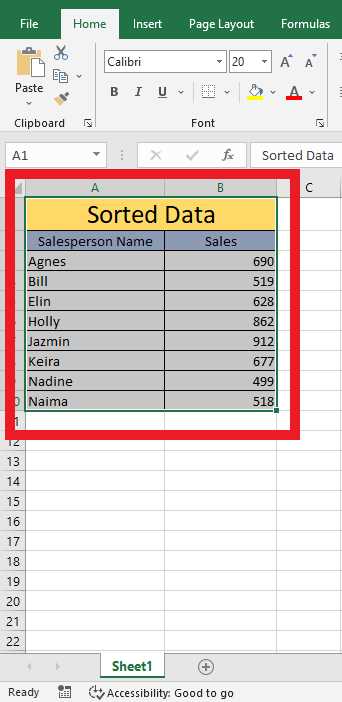
If you need to reset the print range or exclude certain areas from the printout, select the Clear Print Area option. This removes any previously set boundaries, allowing you to redefine the print range based on new criteria.
Adjusting the Printable Range in a Spreadsheet
To define the print boundaries of a document, highlight the cells you intend to include. Click and drag your mouse or use keyboard shortcuts to select the desired range of data.
Next, navigate to the “Page Layout” tab on the ribbon, where you will find options to set up the printing preferences. There, click on the “Print Area” button to designate the chosen cells for printing.
If your selection is inaccurate, simply click on “Clear Print Area” and repeat the process to mark the correct range again. This ensures only the intended content appears on the printout.
Another helpful option is adjusting the page setup. Under the same tab, explore “Margins” to modify the boundaries of your document, which can help fit more data into a single page.
If you’re printing a large dataset, consider reducing the scale of the printout. Use the “Scale to Fit” section in the “Page Layout” tab to resize the content to fit the page properly without distortion.
In addition, reviewing the “Print Preview” is important before finalizing your print job. This feature displays how the document will appear on paper, helping you identify any potential formatting issues.
For consistency, you can repeat these steps for multiple sections within the same workbook. Ensure the selections are marked correctly before printing each segment to avoid any unwanted blank spaces or cut-off data.
Lastly, use the “Print Titles” option if you need specific rows or columns to appear on each printed page. This ensures that key information like headers and labels remains visible, making the printout more readable and professional.