To ensure your spreadsheet fits perfectly on paper, begin by defining the range of cells you want to print. This allows you to focus only on the relevant data, avoiding unnecessary blank areas. Simply select the cells and specify the print range through the page setup options.
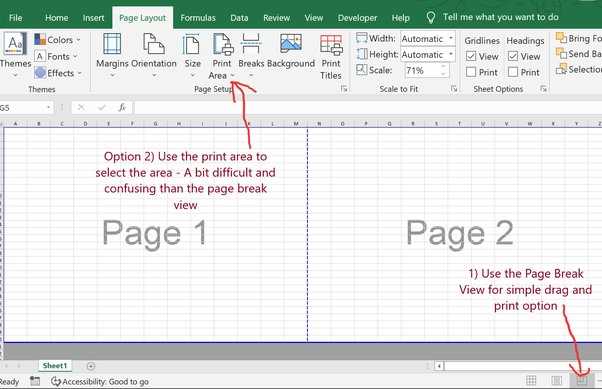
Next, adjust the margins to ensure the content fits neatly within the printable boundaries of your page. Narrow or custom margins can help maximize space, particularly when dealing with large datasets. Use the “Page Layout” tab to tweak these settings and fine-tune your printout for the best presentation.
Before sending your document to the printer, it’s crucial to preview the results. This will help you spot any issues, such as content spilling over to extra pages or missing data. Adjust the scaling options if necessary, like shrinking the content to fit on a single page or adjusting the orientation to suit your layout.
Adjusting the Printable Range in Your Spreadsheet
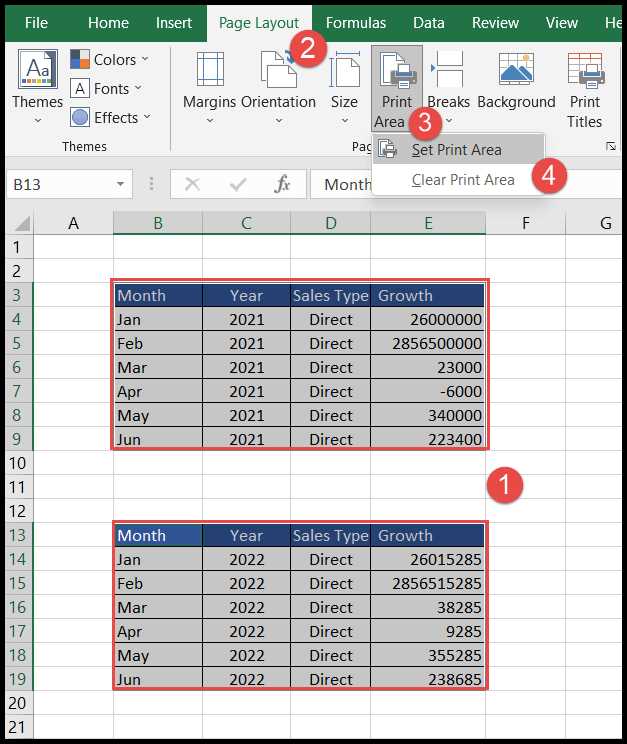
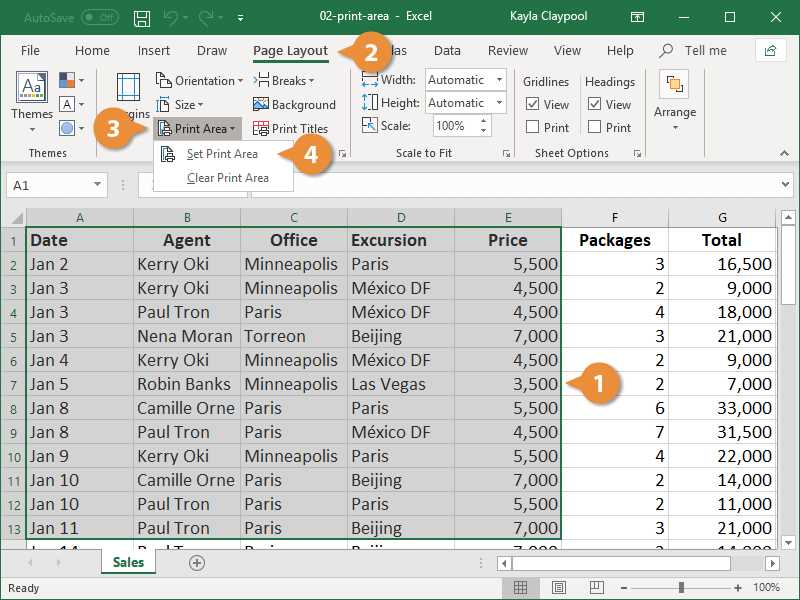
Begin by selecting the cells that you want to include in your printout. This can be done by clicking and dragging your cursor over the desired range. Once selected, you can proceed to specify this range for printing.
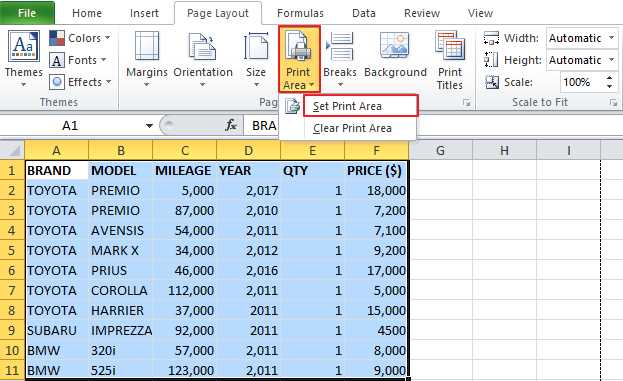
Go to the “Page Layout” tab, then locate the “Page Setup” group. Click on the “Print Area” button and choose “Set Print Area” from the dropdown menu. This will ensure that only the selected cells will be printed, leaving the rest of the spreadsheet out of the printout.
If you want to adjust the range later, you can clear the previous selection by clicking “Clear Print Area” from the same menu. Then, simply select a new range and repeat the steps to set it again.
For finer control, use the “Print Preview” feature. This allows you to see exactly how your document will appear when printed. In the preview mode, you can adjust margins, scaling, and orientation to better fit the content onto the page.
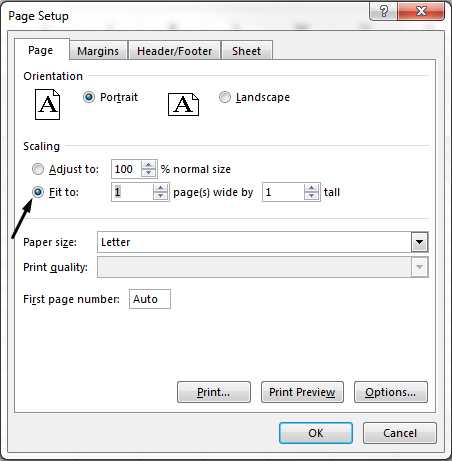
Scaling options are helpful when your content is too large to fit on a single page. You can shrink the entire sheet by selecting the “Fit Sheet on One Page” option or choose “Fit All Columns on One Page” to keep everything readable without losing important data.
If you have specific requirements for paper size, adjust the page size under the “Page Layout” tab. This will ensure that the document matches the dimensions of the paper in your printer, preventing any overflow or cut-off information.
Check that the orientation is set appropriately for the content. If your sheet is wider than it is tall, select the “Landscape” orientation. For taller, more detailed data, choose the “Portrait” option.
After making all adjustments, be sure to save your settings. The next time you print, your selected range and page settings will remain, streamlining the process for future use.