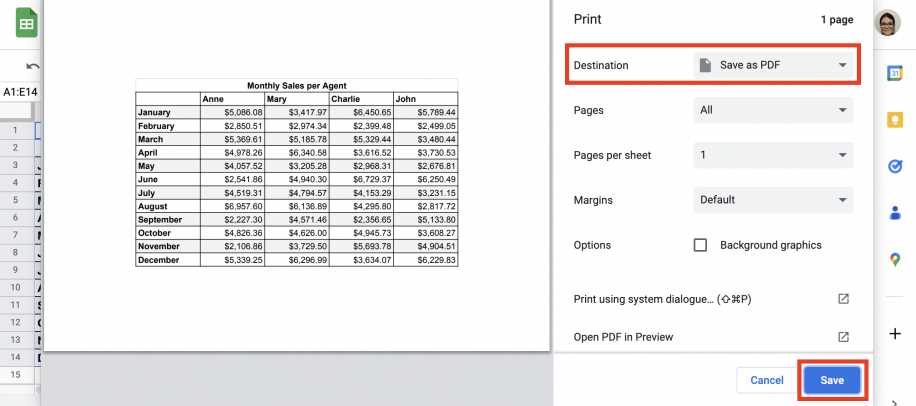
To control what content appears on printed pages, start by selecting the specific cells you want to include. Highlight the range that you need to print and ensure it fits within the printable boundary. This allows you to avoid printing unnecessary blank spaces or extra data.
Step-by-Step Instructions for Configuring the Print Range
Begin by opening your document and selecting the range of data you wish to include in the printout. Navigate to the “File” menu and select “Print” to open the page settings. In the print preview window, under the “Print Setup” section, select the “Selected range” option. This will limit the printed content to just the highlighted cells, preventing extra sections from being printed.
If the selected range does not fit the default paper size, you can adjust the scaling options. Choose “Fit to width” or “Fit to height” to ensure all your content appears neatly on the page without cutting off important information.
Adjusting Margins and Orientation for Clean Printing
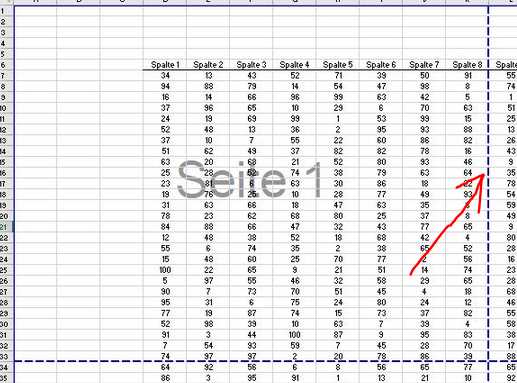
In the print preview window, you can also modify the page margins to maximize space. Adjust the top, bottom, left, and right margins to fit your content perfectly. Additionally, changing the page orientation from portrait to landscape can give you more room horizontally, which is helpful for wide tables or graphs.
After setting up the layout and margins, preview the final document to ensure everything is aligned correctly. If necessary, you can fine-tune the page breaks or re-size certain columns and rows to make everything fit nicely. Once you’re satisfied, simply hit “Print” to generate the document with the adjusted settings.
Adjusting Your Document for Printing
Begin by selecting the exact range you want to print. Highlight the relevant cells and ensure they are correctly framed. Once you have selected the content, go to the “File” menu, then click “Print.” This will open the print settings where you can refine the document’s layout for your printout.
Within the print preview, select “Selected range” under the print setup options. This option ensures that only the highlighted data will appear on your printout, cutting out any unnecessary blank spaces or unrelated cells. This feature is helpful when you need to print a specific portion of a large dataset.
If your content doesn’t fit neatly onto the page, you can adjust the scale. In the print setup window, select options like “Fit to width” or “Fit to height” to automatically resize the content, making sure it fits within the printable area of your paper without being cut off.
For more control, adjust the margins to suit the layout of your data. By reducing the margins, you can maximize the available space for your table or text, ensuring that everything is printed clearly and without unnecessary gaps. You can change margins by clicking on the “Margins” dropdown in the print preview and choosing custom sizes.
Additionally, you can switch the orientation of the page from portrait to landscape if your content is too wide. Landscape orientation is ideal for wide tables, charts, or graphs that would be too cramped in portrait mode. You can find this option in the print setup under “Layout.”
Finally, always use the “Preview” feature to check how the final document will look when printed. This allows you to make any last-minute adjustments, such as fine-tuning column widths or row heights, ensuring everything fits perfectly. Once satisfied, click “Print” to finalize your document and print it out in the desired format.